Top
Mobile TopUp

Quick and Convenient Mobile Top-Ups with Zovo Pay

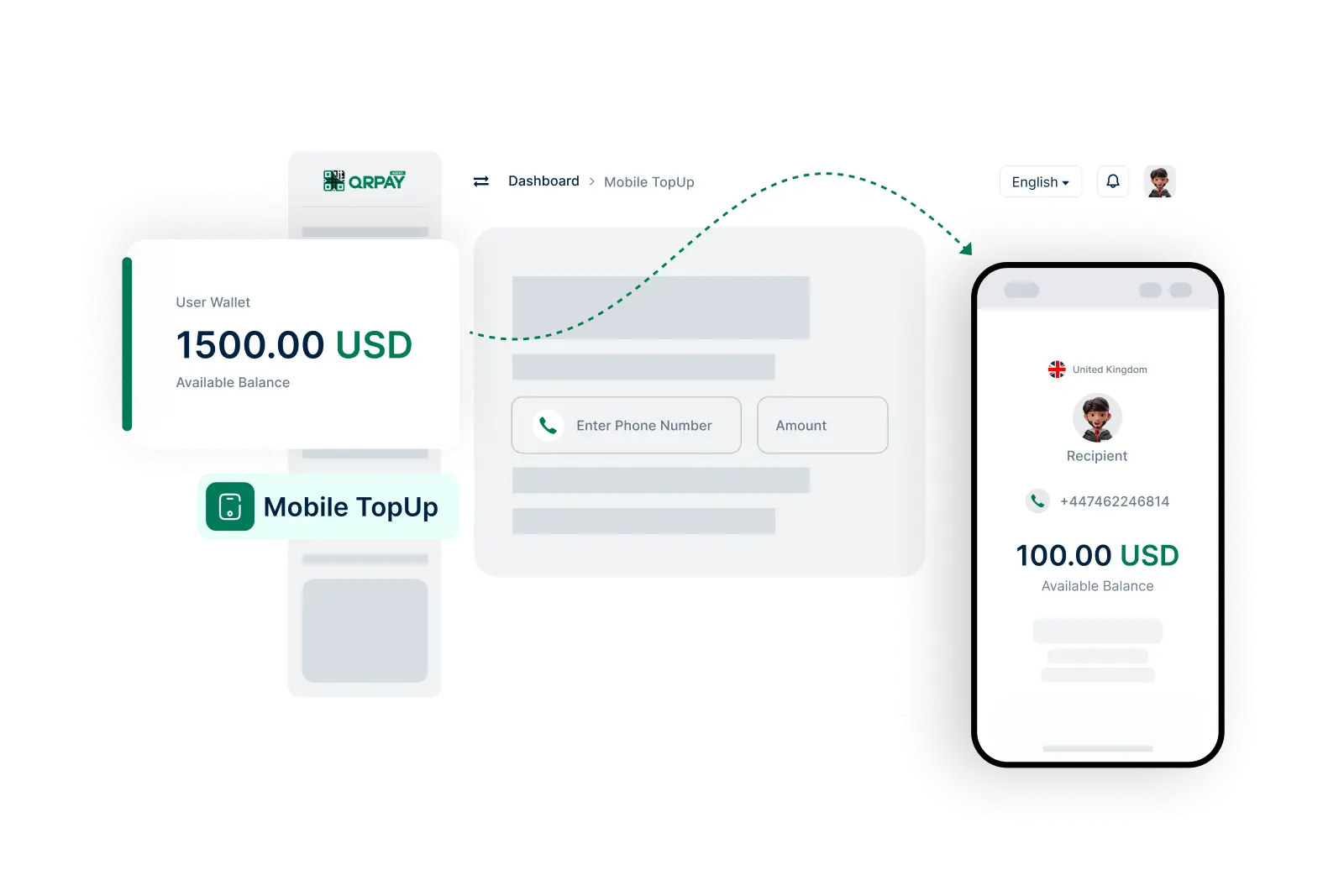
Zovo Pay enables agents to easily top up mobile accounts for users, ensuring they stay connected without interruption.

Simple Steps to Top-Up Mobile Accounts

  • 1 Log In to Your Account
  • 2 Select Mobile Top-Up Option
  • 3 Enter the Mobile Number
  • 4 Choose the Amount
  • 5 Review Top-Up Details
  • 6 Confirm and Complete Top-Up
Start Mobile Top-Up Now
Quick and Convenient Mobile Top-Ups with Zovo Pay

How to Top-Up Mobile Phones Using Zovo Pay

How to Top-Up Mobile Phones Using Zovo Pay

How to Top-Up Mobile Phones Using Zovo Pay

Frequently Asked Questions About Mobile Top-Up on Zovo Pay

Get answers to your queries regarding mobile top-ups for users.

How can I top-up a mobile phone using Zovo Pay?
To top-up a mobile phone, log in to your account, navigate to the ‘Mobile Top-Up’ section, enter the mobile number, select the amount, review the details, and confirm the transaction.
Which mobile networks can I top-up through Zovo Pay?
Zovo Pay supports a variety of mobile networks. Please check the available networks in your area on the Mobile Top-Up page.
Are there any fees associated with mobile top-ups?
Fees may apply based on the top-up amount and the mobile network provider. Review your account settings for specific fee details.
How will I know if the mobile top-up was successful?
You will receive a notification confirming the successful top-up along with a transaction reference number for your records.